

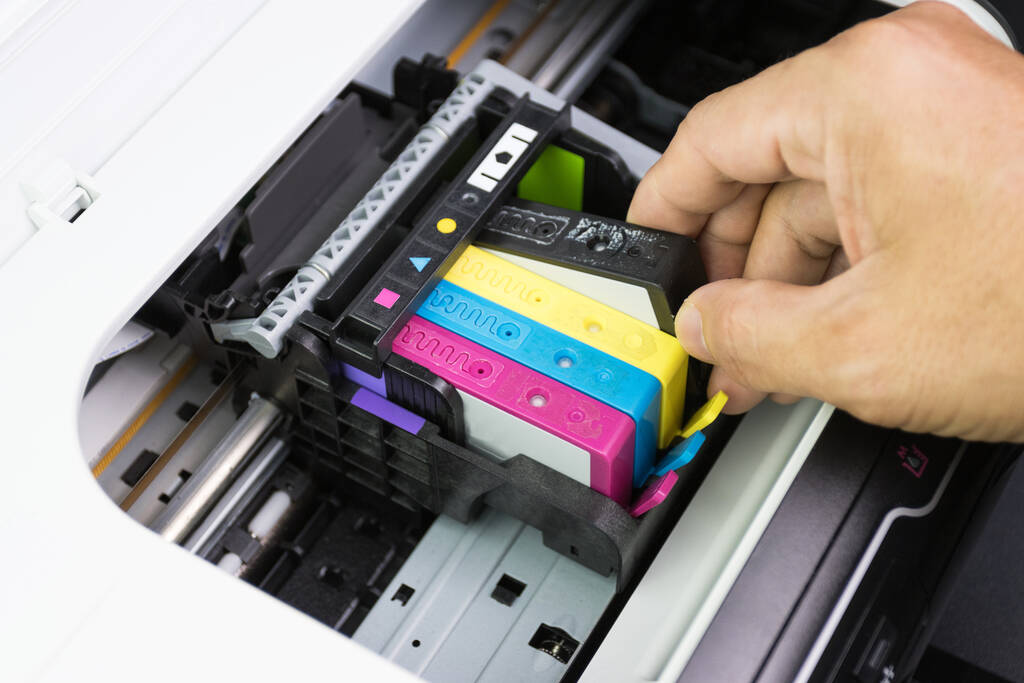

How to Refill Canon Printer Cartridges Safely and Effectively
We get it—the price of printer ink can make you look twice. So, if you’re looking for a cost-effective and eco-friendly alternative to buying new ones every time, consider refilling your printer cartridges instead. But how should you exactly do that? Let us walk you through how to refill Canon printer cartridges yourself. By following this guide to the T, you can save money and ensure vibrant prints from your trusty Canon office printer.
What You Need to Get Started
Before you start the Canon printer cartridge refill process, check if you have the right gear. Safety and quality are key here!
- A High-Quality Refill Kit: Don’t skimp on the ink! Low-quality ink can clog your printheads or give you terrible colours. Make sure the kit is designed for your specific Canon PIXMA printer cartridge model (or whatever Canon series you use).
- Disposable Gloves: Ink is messy! So, grab a pair of disposable gloves and save your hands from looking like a modern art project.
- Paper Towels or Newspaper: Spills may happen. So, spread these out on your workspace to catch any leaks or spills.
- A Small Drill Tool (usually a thumb drill): Many refill kits include this to make the refill hole. Check if you have this in your kit.
- Clear Tape or a Sealing Plug: This is for sealing the hole when you’re done, so make sure that you have it ready before you start.
Step-by-Step: How to Refill Printer Cartridges Yourself
This process mainly applies to Canon’s integrated cartridge systems (where the printhead is part of the cartridge).
Step 1: Prep Your Cartridge and Workspace
- Remove the Cartridge: Turn on your Canon printer, open the cover, and wait for the cartridge carriage to move to the centre. Then, carefully take out the cartridge that needs to be refilled.
- Locate the Fill Hole: Carefully peel back the top label/sticker on the cartridge. You’ll usually see small depressions or guide points. On a black cartridge, there’s often one main spot; on colour cartridges, you’ll see three (one for each colour: Cyan, Magenta, and Yellow).
- Create the Hole: Use the small drill (or a very sharp tool from your kit) to puncture a small hole in the correct depression. Be careful not to drill too deep and damage the internal sponge!
Step 2: Inject the Ink Safely
This is where the magic (and the potential mess) happens!
- Draw the Ink: Fill the syringe with the correct colour ink. The exact millilitre (ml) amount can be found in the instructions that came with your refill kit. Keep this in mind: it’s always better to underfill slightly than to overfill to avoid leaks and spills.
- Quick Tip: Hold the syringe upright and gently tap it to push any air bubbles to the top, then push the plunger slightly to clear the air before injecting.
- Inject Slowly: Put the needle into the fill hole slowly. It only needs to go in as far as the sponge is. Then, push the plunger slowly and steadily to inject the ink.
- STOP IMMEDIATELY if ink begins to bubble or leak out of the hole—it’s full!
- Repeat for All Colours: If you are refilling a colour cartridge, be certain you are injecting the right colour into the right chamber! Before committing, you can carefully check the remaining colour in each chamber with a toothpick.
Step 3: Seal and Clean
- Seal the Hole: After the hole is filled, carefully retract the syringe. Remove any extra ink from the cartridge’s top. Use a sealing plug or a piece of clear tape to cover the hole you used.
- Keep the Vent Open: Cartridges must breathe, so keep the vent open! Make sure the tape does not cover the tiny vent slit, which is a maze-like channel usually located along the cartridge’s edge.
- Wipe the Print Head: Using a fresh, lint-free cloth moistened with distilled water, gently wipe the printhead itself (the area facing the paper). This keeps the nozzles from getting clogged with dried ink.
Step 4: Reinstall and Test
- Reinstall: Place the cartridge back into your Canon printer. It should click firmly into place.
- Run a Test Print: Use your printer’s software to run a test page or a nozzle check. This forces the ink to flow properly and helps clear any air bubbles. You may need to run the printer’s printhead cleaning function once or twice.
When to Call the Experts
Refilling your Canon printer cartridges is a great way to save money, but sometimes, a DIY job isn’t the best solution, or you might hit a snag.
The Printer Won’t Recognise It
Most Canon cartridges contain a chip that electronically tracks the ink level. When a refilled cartridge is installed, the chip may still report the ink level as empty, and the printer may display a “low ink” or “out of ink” error.
You must manually disable this ink monitoring function for the refilled cartridge. If you skip this step, the printer will often refuse to print or suddenly stop mid-job because the chip’s counter has reached zero.
How to Override:
- When the “low ink” warning appears, wait for the prompt to clear.
- Locate the Resume (or Stop/Reset) button on your printer—it is usually marked with a triangle or a circle/triangle icon.
- Press and hold this button down for 5 to 10 seconds.
- The printer will register this action and permanently disable the electronic ink-level monitor for that specific cartridge, allowing you to print until the cartridge is truly empty.
Note: By performing this override, you accept that the printer will no longer warn you when the ink is actually running out, so you must monitor print quality yourself.
Poor Print Quality Persists
If you’ve tried refilling correctly and run a cleaning cycle, and you’re still getting streaks, banding, or blank pages, you might have a printhead issue or an internal cartridge problem.
You’d Rather Skip the Mess
Let’s face it—it can be messy and fiddly. If you’re short on time or just don’t want to deal with the ink, that’s okay!
This is where Printer Repair Centre comes in.
We provide same-day on-site printer repairs right here in Sydney! Whether you’ve got a grumpy multifunction device, a tricky plotter, or a Canon printer cartridge refill gone wrong, our expert technicians are ready to roll up their sleeves. Don’t risk damaging your device or wasting valuable office time; leave all your printer repair & maintenance needs in our expert hands. Schedule a service request today.

